Checking commander delegations
BLUF: Users can check to see the commanders who have been allocated tokens, how many they have spent and how many they have remaining.
Written By Stacey Kessler
Last updated 8 months ago
Step 1: Navigate to the SIF Marketplace FY26 token event
Click Token Event on the left navigation
Click SIF Marketplace FY26
Note- The image in the screenshot below is from the demo environment. The SIF Marketplace event in production will not have demo in the name.
When in the event you will see the Applications | Designations Tab. Click Designations
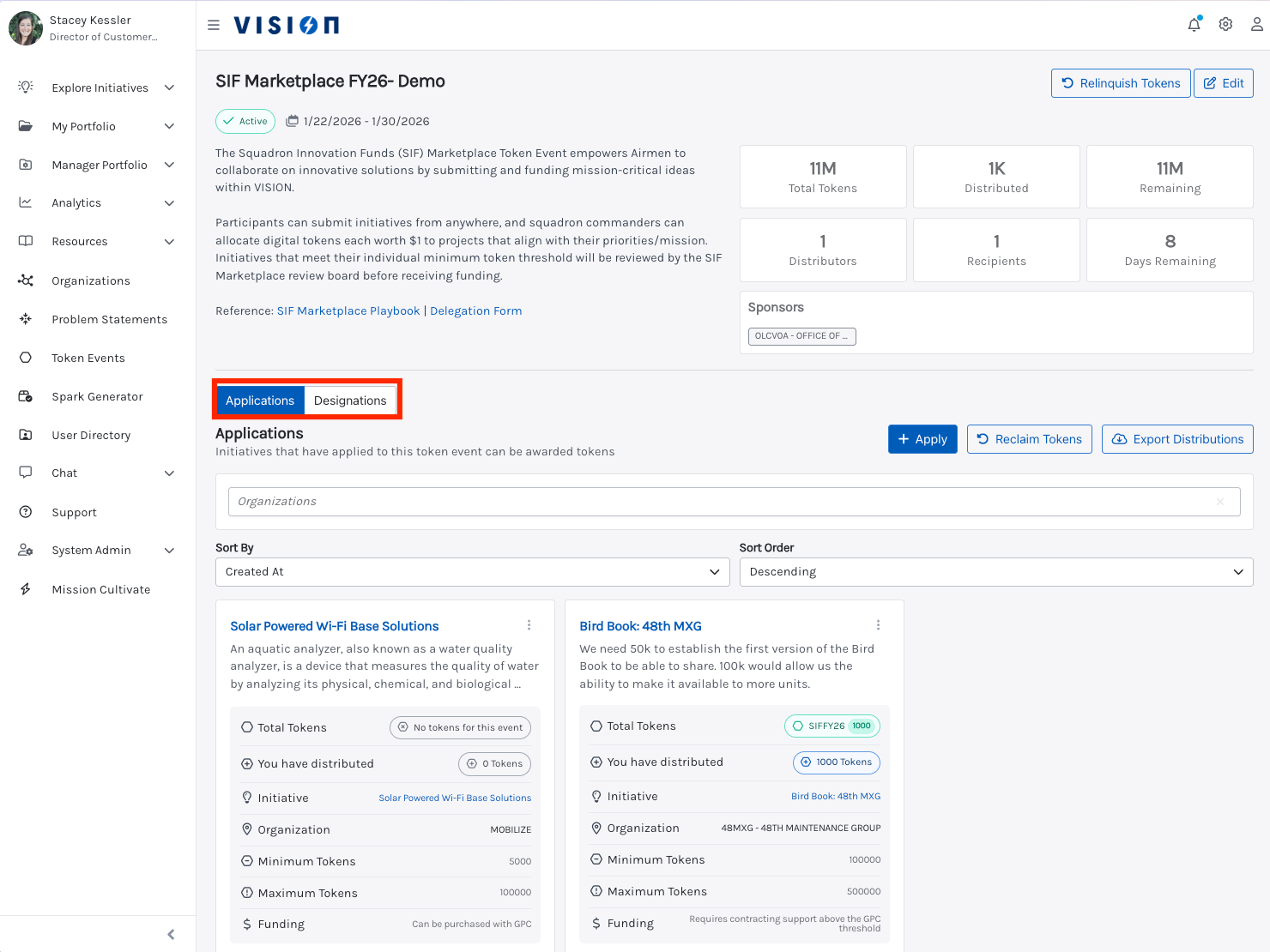
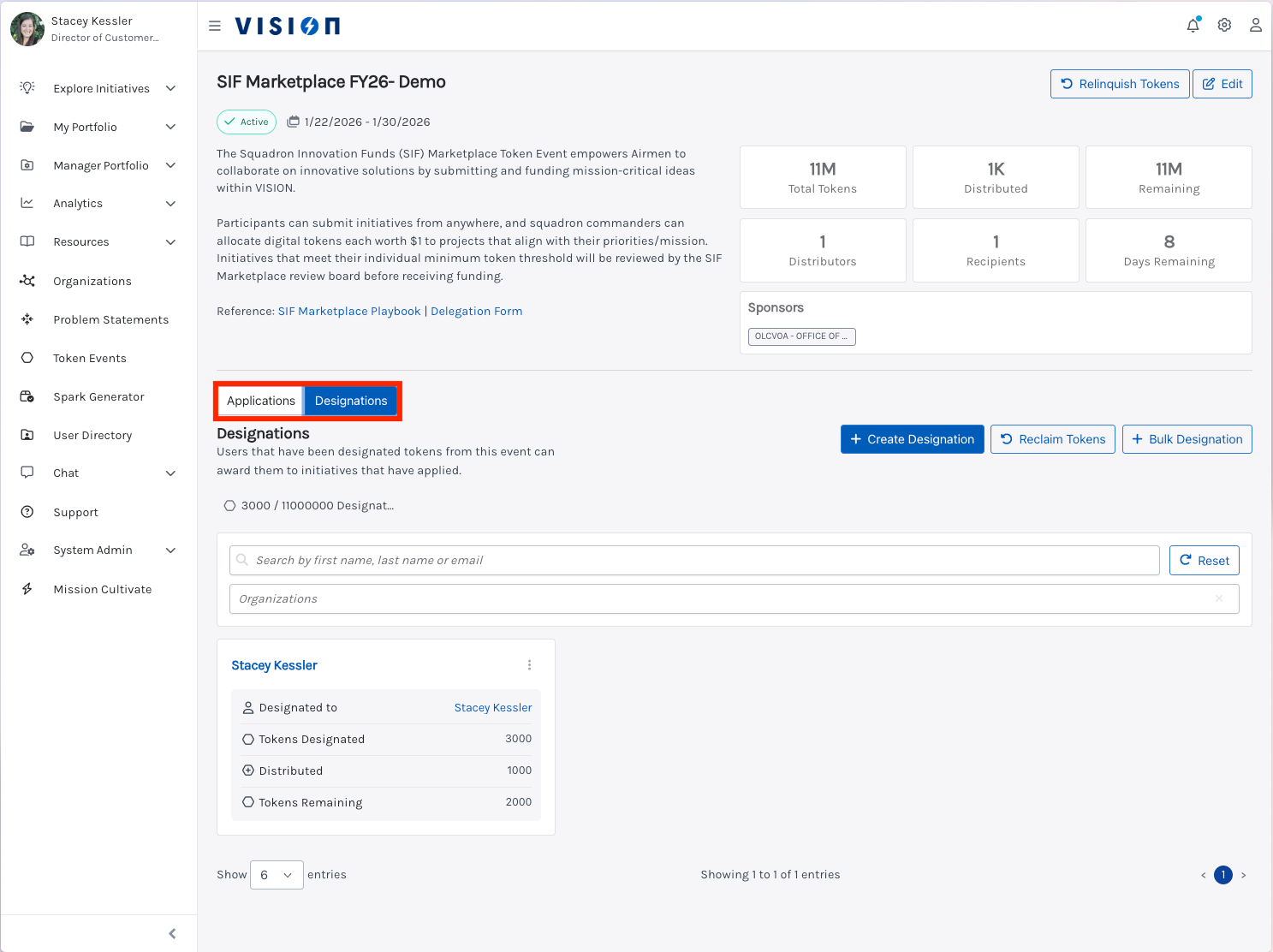
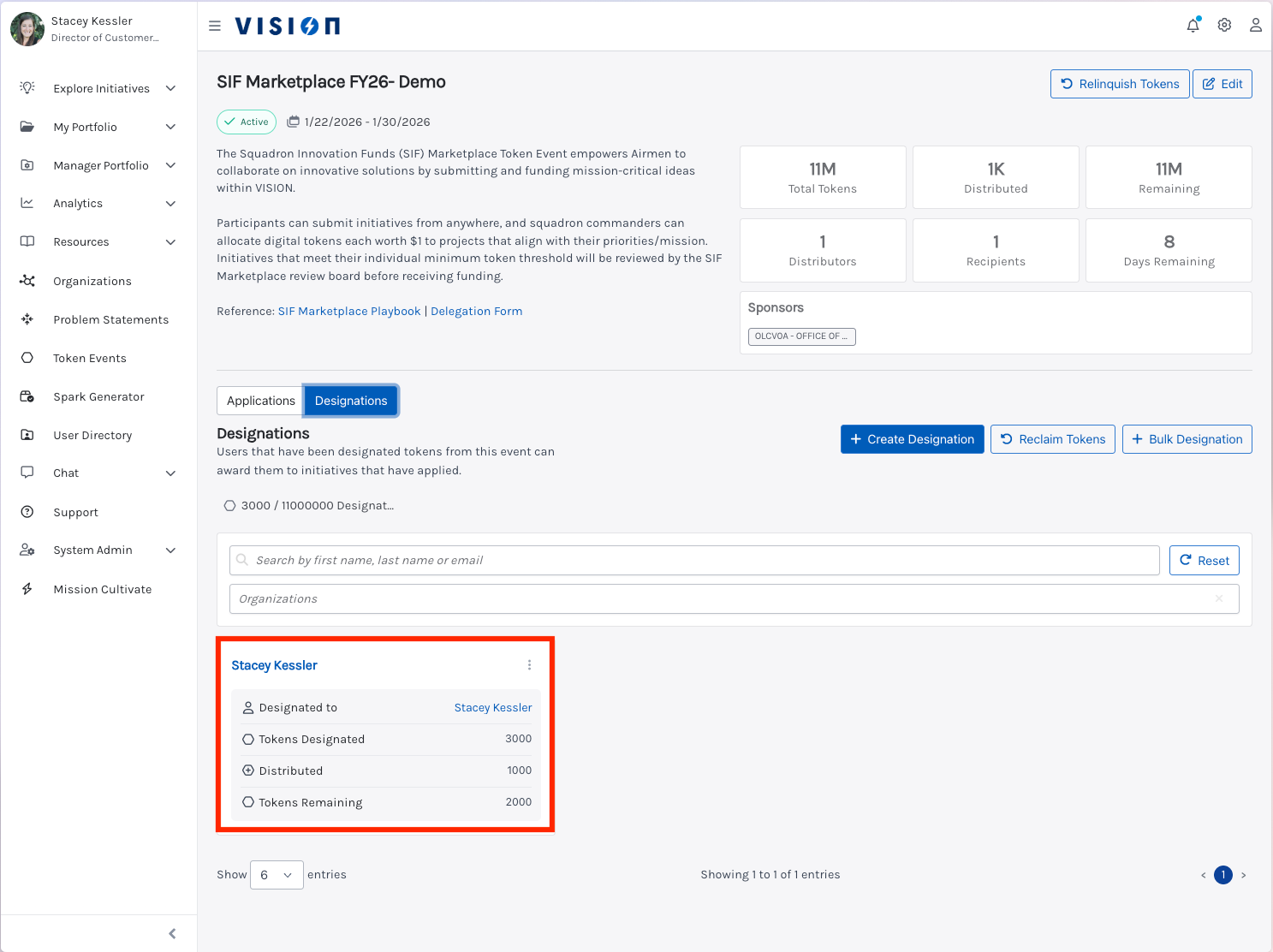
Step 2: You can review a commander’s card. This includes how many tokens they were designated, how many they have distributed and how many tokens they have remaining.
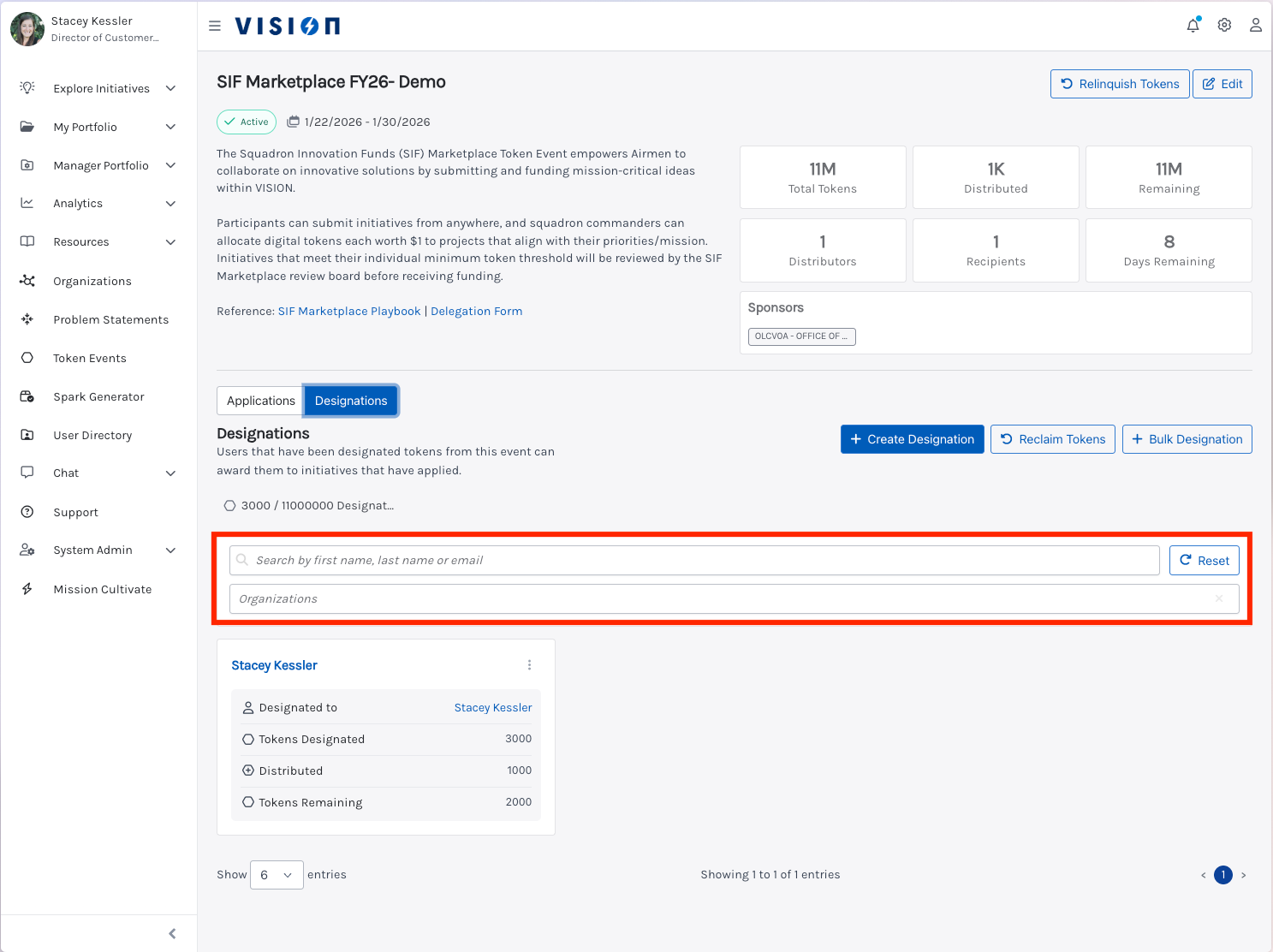
Step 3: You can search using the organization field to find all of the commander’s for your Wing or MAJCOM. For example, if you add AETC to organizational filter it will show you all the Squadron Commander’s that fall under AETC who have created an account.
Note some commanders have not updated their profile details since last FY. This might cause previous commanders to fall under an organization they are not currently connected to. Please reach out to our support team if the commander’s within your Wing/MAJCOM are not showing up AND they have created a VISION account.
You can also search by an individual commander to double check they are not currently listed in another organization and have received tokens.