Updating an initiative organization
Written By Stacey Kessler
Last updated 5 months ago
If your initiative needs to be moved to a different organization there are a couple of ways to solve this depending on your permissions and the status of the project. This resource will walk you through that process
Lead team member updating the initiative organization
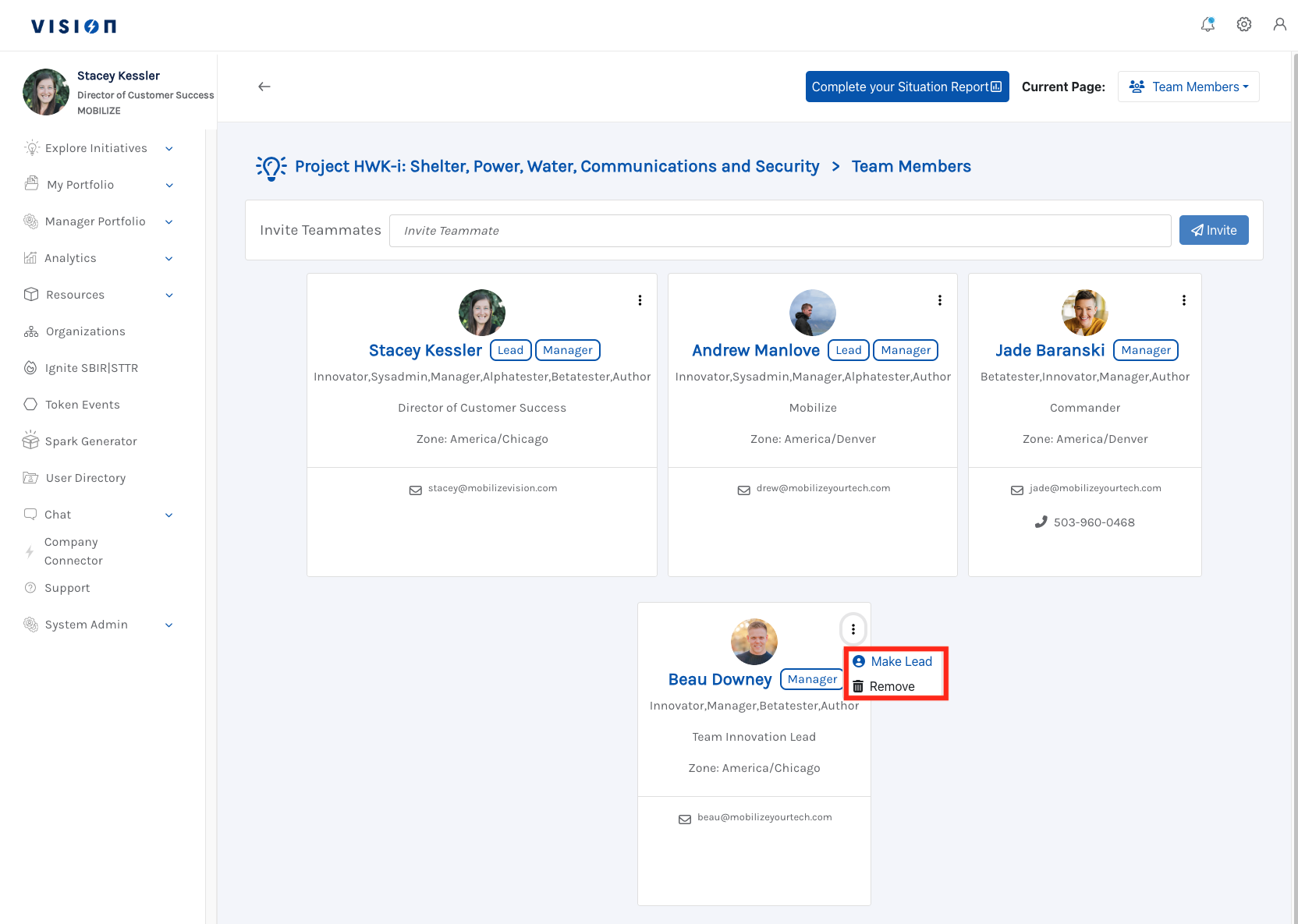
Permissions- The lead team member is the individual that created the initiative, was assigned as a lead team member by the manager or another team lead.
Note- Managers or team leads can assign additional leads following the steps below
Step 1
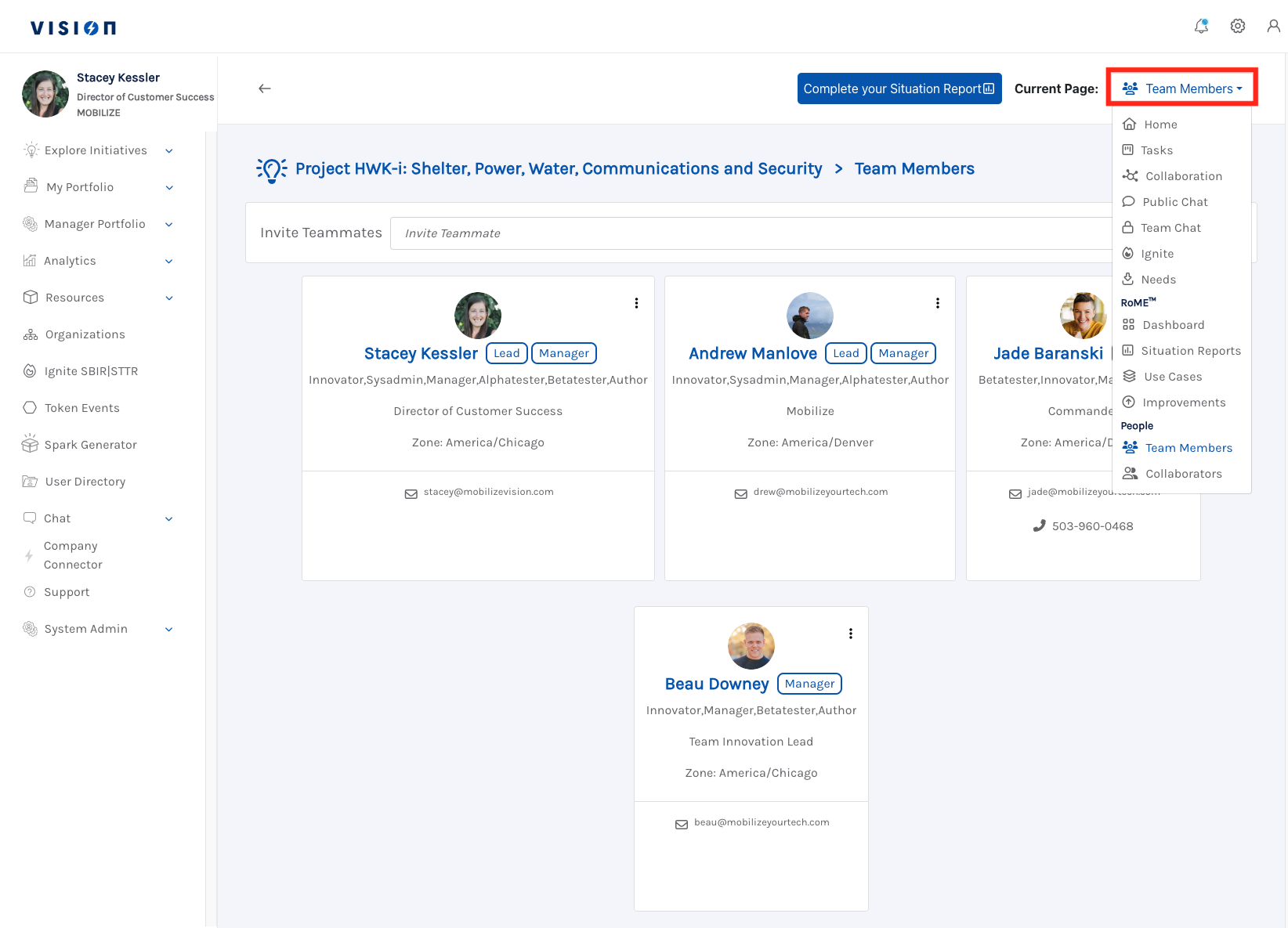
Step 2
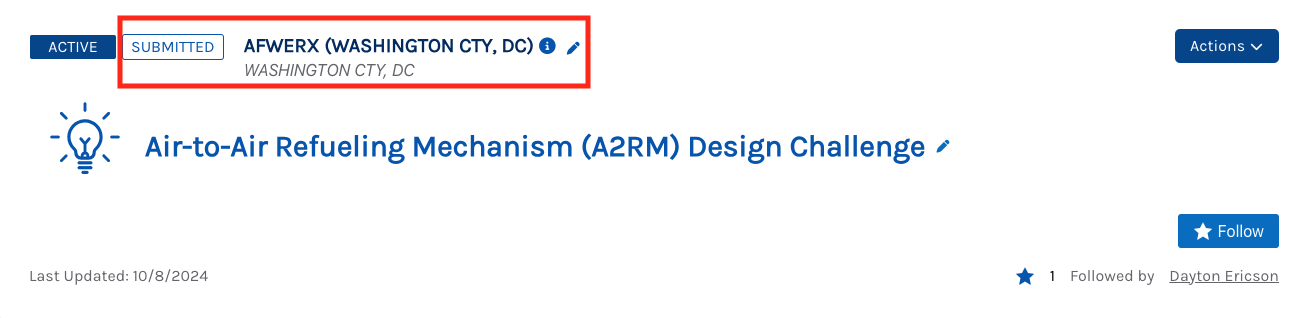
Status- The project will need to be in a submitted status and when it is in a submitted status the lead user will have the pencil icon to edit the organization
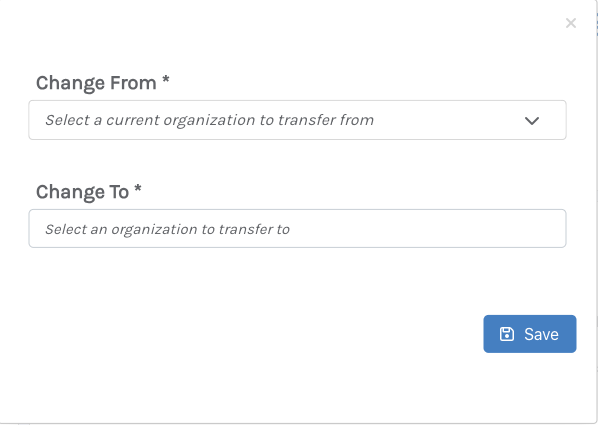
The user will then get the following screen and will select the organization it is currently in as well as the organization it is going to and it will update immediately
Manager updating initiative organization without lead permissions
The manager will click the Actions button in the top right corner of the individual initiative

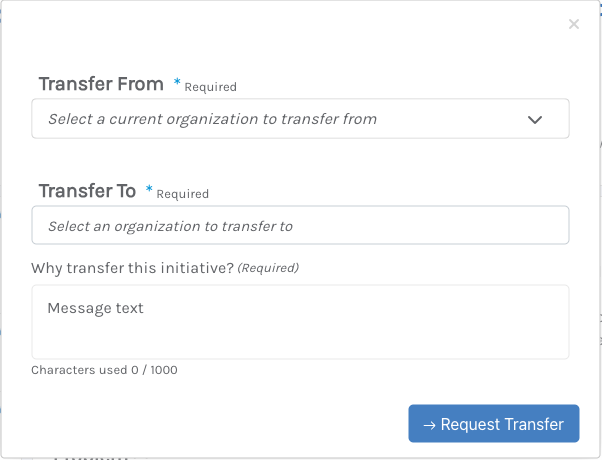
Once the Action button is clicked the user will be presented with the screen below where they will select the current organization it is in as well as the organization that it needs to be transferred to. User’s will add a description as to why this initiative is being transferred and then submit the request.
Accepting a transferred initiative
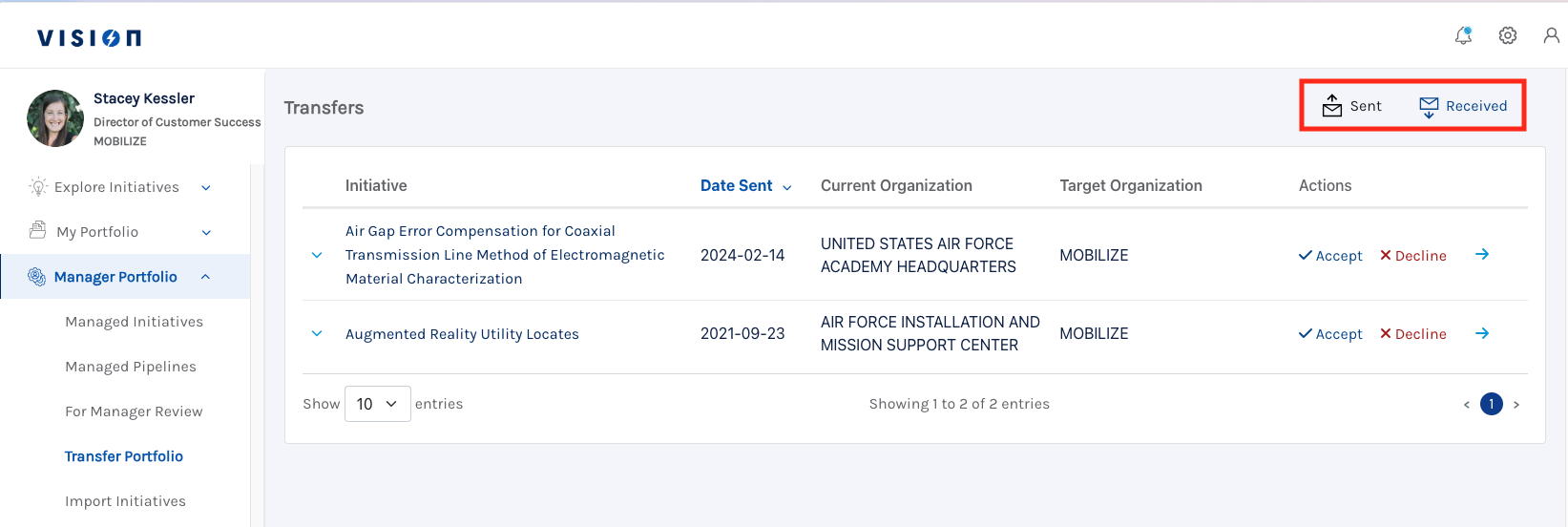
Managers will click Manager Portfolio and then Transfer Portfolio.
Once on the Transfer Portfolio page users will see Sent and Received in the right corner and can managed their transferred initiatives from there.